What to Look for in a Mini PC for Digital Signage
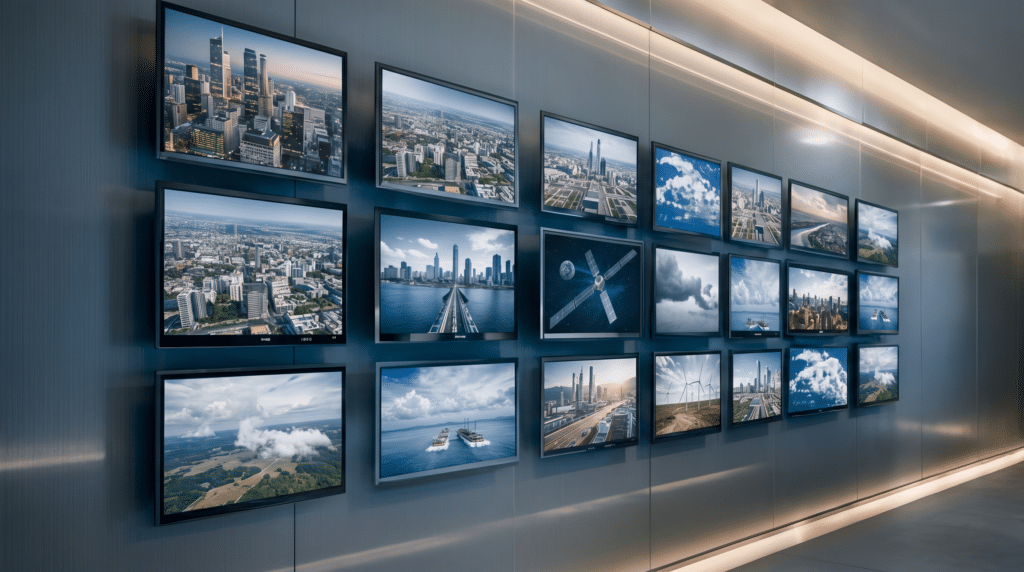
Digital signage lives or dies on the hardware behind the screen. The display gets the attention, but the small computer driving it decides whether your content plays reliably at 2 a.m. on a holiday weekend, survives a warm storefront in July, and keeps running for years without a service call. Choose the wrong device and you inherit downtime, emergency IT visits, and replacement costs that dwarf whatever you saved up front.
This guide walks through what actually matters when selecting a mini PC for digital signage, so you can spec the right device the first time.
Here’s what stood out:
Start with the deployment, not the spec sheet
Before comparing processors or ports, answer one question: where and how will this device run? A mini PC behind a lobby welcome screen has very different requirements from one driving an outdoor menu board or a 24/7 video wall in a transit hub.
Map out three things:
🔹The environment. Climate-controlled office, or a warehouse, retail floor, or outdoor enclosure? Temperature range matters more than most buyers expect, and we’ll come back to it.
🔹The display setup. One screen, or several? What resolution, 1080p, 4K, or 8K? Multiple displays and higher resolutions demand more from the device’s graphics and video outputs.
🔹The uptime expectation. Business hours only, or always on? Continuous operation is a different engineering problem than a device that gets to rest overnight.
Everything below flows from these answers.
Display outputs: match the ports to the screens
The most common signage mistake is buying a device that can’t natively drive the displays you have, then patching around it with adapters and splitters that become failure points.
Look at native video outputs. If you’re driving four screens, a device with four native HDMI outputs is far more reliable than one HDMI port fanned out through external hardware. Check the HDMI version too: HDMI 2.1 supports higher resolutions and refresh rates than older 2.0, which matters if you’re running 4K at 60Hz or a single 8K display.
The principle: the fewer adapters, converters, and expansion boxes between the device and the screen, the fewer things can fail. Native connectivity is reliability.
Processor and graphics: enough, but not overkill
Signage rarely needs a workstation-grade processor, but underpowering the device causes stutter, slow content loads, and crashes during video playback. The right target depends on your content:
🔹Static images and simple loops: modest processors handle these comfortably.
🔹Full-motion 4K video, multiple zones, or live data feeds: you want a current-generation processor with capable integrated graphics.
🔹Multi-display 4K or 8K playback: prioritize integrated graphics performance specifically, since that’s what renders and pushes pixels to every screen.
Integrated graphics have improved dramatically and handle most signage workloads without a separate graphics card, which keeps the device compact and power-efficient.
Memory and storage: size to the workload
Signage is lighter on memory than general computing, and it’s easy to overspec here. As a rule of thumb:
🔹8 GB RAM comfortably runs most signage and kiosk workloads, this covers the majority of deployments.
🔹16 GB is plenty for multi-zone layouts, heavier 4K, or content management software running locally.
🔹4 GB can handle basic single-screen loops on lower-end setups, though 8 GB is the more common and comfortable baseline.
For storage, solid-state (SSD/NVMe) is the standard, no moving parts to fail, faster boot, better reliability in warm or vibration-prone locations. Capacity depends on whether content is stored locally or streamed. A device that lets you configure RAM and storage to the deployment, rather than locking you into a fixed spec, saves money on simple installs and scales up for demanding ones.
Reliability: the spec that costs the most when ignored
Here’s the part buyers underweight. In a commercial deployment, a single device failure almost always costs more than the price gap between a cheap device and a reliable one. Factor in downtime, emergency IT labor, an on-site visit, and a rush replacement, and the “budget” device becomes the expensive one.
Two things to look for:
🔹Build standards. Consumer-grade hardware is built to consumer-grade standards. Commercial signage should use devices built to commercial build standards (for example, IPC-610 Class 2), which translates to lower defect rates and longer field life.
🔹Operating temperature range. Most consumer mini PCs are rated for roughly 0°C to 35°C, essentially a climate-controlled office. Signage often lives in warmer or harsher spots: sunlit windows, unconditioned warehouses, outdoor enclosures. A device rated for a wider range (for example, -20°C to +40°C, or higher on some models) is built with components chosen to survive those conditions, not just specs printed on a page.
Ask about defect rates and warranty length. A multi-year warranty and responsive, locally based support are signals that the manufacturer stands behind the reliability they advertise.
Compliance: the requirement you might not know you have
Many organizations receive some form of federal funding, E-Rate, Title I, state contracts, that triggers NDAA compliance requirements they weren’t aware of until mid-procurement. If your organization touches any of these, verify that the hardware is NDAA compliant across the entire board, not just on select models. Discovering a compliance gap after purchase is an expensive surprise.
Manageability and OS
For fleets of screens, remote management matters. Consider how you’ll push content, apply updates, and reboot devices without sending someone on site. Check OS support too, signage runs on Windows 11 Pro, Windows IoT, and Linux distributions like Ubuntu, and your content management software may prefer one. A device that supports multiple operating systems gives you flexibility as your stack evolves.
A quick buyer’s checklist
Before you purchase, confirm the device offers:
🔹Enough native video outputs for your displays, at the right HDMI version
🔹Integrated graphics capable of your resolution and screen count
🔹RAM and storage sized (ideally configurable) to your workload
🔹A commercial build standard and an operating temperature range that matches your environment
🔹NDAA compliance, if federal funding applies
🔹The OS your content software needs
🔹A meaningful warranty and accessible support
Where Azulle fits
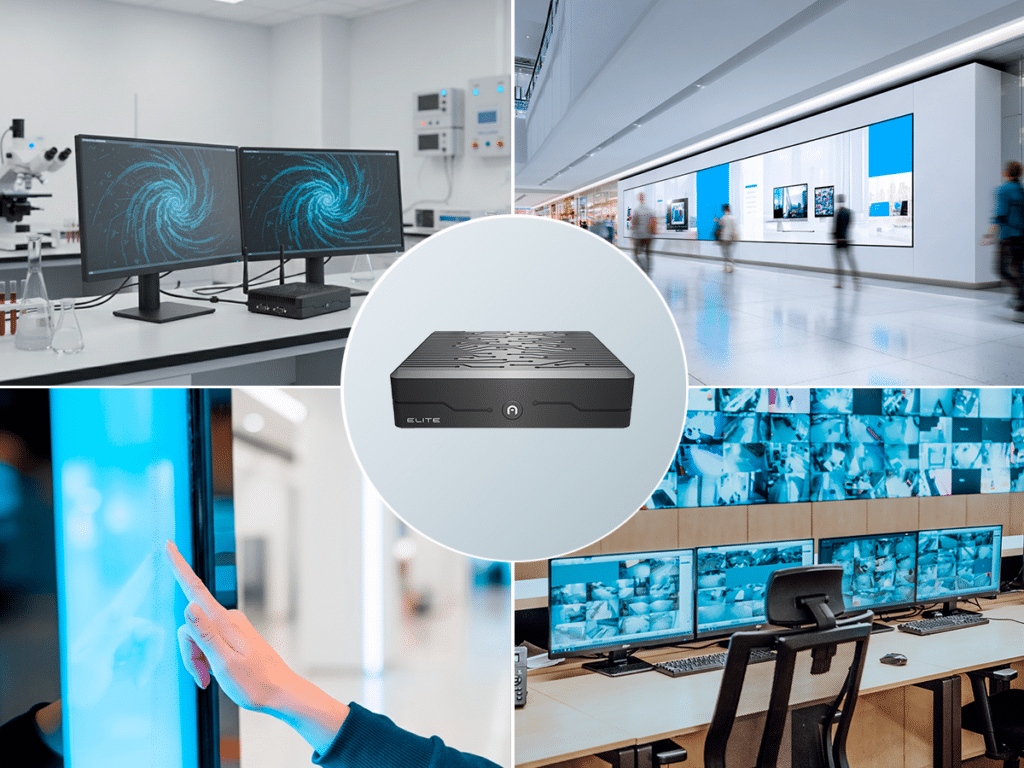
Azulle builds mini PCs specifically for commercial and industrial deployments, the exact conditions signage lives in. Every device is built to IPC-610 Class 2 commercial standards with a 0.05% defect rate, is 100% NDAA compliant across the entire board, and is backed by a 3-year warranty and USA-based support.
For demanding multi-display signage and video walls, Elite drives up to four 4K displays from four native HDMI 2.1 outputs, with configurable I/O and optional on-device AI. For everyday commercial signage and kiosks, our broader lineup offers compact, reliable options you can configure to the deployment.
Not sure which fits your project? Our US-based team will help you spec it. Talk to us and we’ll match the hardware to your deployment.
🔹Deploying signage at scale? Ask us about volume configuration and fleet support.